Visual Workflow Building: AI Automation You Can See
The best interfaces disappear. They don't make you think about how to use them - they let you focus on what you want to accomplish. Visual AI workflow builders achieve this by making data flow visible and manipulation intuitive. Drag files in. Click transformations. Watch results appear. Chain operations together. That's it. No syntax to memorize, no documentation to study, just direct manipulation of your automation logic.
Why Visual Beats Text for Workflow Building
👁️ Immediate Comprehension
See your entire workflow at a glance. Visual representation communicates logic faster than reading code or configuration files.
🎯 Direct Manipulation
Drag and drop AI lets you touch your workflows. Move operations, reconnect flows, see changes instantly.
🔍 Error Prevention
Visual connections show valid combinations. Can't connect incompatible operations - the interface prevents mistakes before they happen.
🚀 Faster Iteration
Experiment without fear. Visual workflows make trying variations effortless compared to editing code or config files.
The Three Core Interactions: Drag, Click, Connect
Interaction 1: Drag Files Into Workspace
Every visual workflow builder session starts the same way: drag files from your computer into the workspace. The system recognizes file types automatically and shows relevant operations:
🎯 What Happens When You Drag:
- File appears as visual node in workspace
- System identifies format (PDF, image, audio, video, text)
- Relevant transformation buttons activate
- File becomes starting point for workflow
Supported: Documents, images, audio, video, text, spreadsheets, presentations, archives
Interaction 2: Click Transformation Buttons
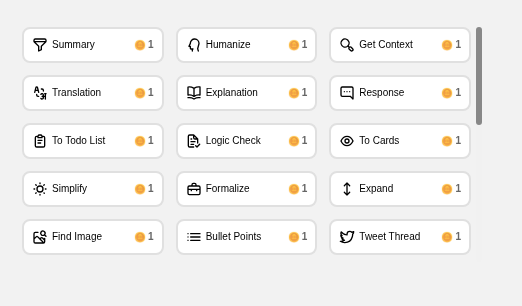
Each file type shows contextually relevant operations. Click a button and AI workflow automation happens instantly - no prompts to write, no parameters to configure:
📄 For Documents:
- Extract Text
- Summarize
- Translate
- Generate Quiz
🖼️ For Images:
- Extract Text (OCR)
- Describe Scene
- Generate Variations
- Remove Background
🎵 For Audio:
- Transcribe Speech
- Extract Music
- Generate Summary
- Translate Audio
🎥 For Video:
- Extract Audio
- Generate Subtitles
- Scene Analysis
- Create Clips
Interaction 3: Connect Operations Into Flows
The magic happens when you chain operations. Output from one becomes input for the next. Visual AI workflow builders make these connections explicit and manipulable:
🔄 Connection Patterns:
- Linear chains: A → B → C (sequential processing)
- Parallel branches: A → [B, C, D] (multiple outputs from one input)
- Convergence: [A, B, C] → D (multiple inputs to one operation)
- Conditional routes: A → (if X then B else C)
Building Your First Visual Workflow: Complete Walkthrough
Step 1: Open Workspace
Launch Vibbo AI in browser. Empty workspace appears ready for files. No setup, no configuration, just a blank canvas.
Step 2: Add Input
Drag a PDF document into workspace. File appears as node, system identifies it as document, shows text operations.
Step 3: First Transform
Click "Extract Text" button. Processing indicator appears, then text output shows in new node connected to original file.
Step 4: Chain Next Operation
Click extracted text node, see text operations. Click "Summarize" - output appears connected to text node.
Step 5: Branch the Flow
Click summary node, add multiple operations: "Generate Social Posts" and "Create Email Version" - parallel branches emerge.
Step 6: Export Results
Select output nodes, click "Export All" - download bundle of all generated content. Workflow complete.
Visual Feedback: Understanding What's Happening
Visual AI workflow builders communicate state constantly through visual cues:
- Processing indicators - Animated nodes show active operations
- Success checkmarks - Completed operations marked clearly
- Error highlights - Failed operations show red with explanation
- Connection lines - Data flow paths visible and traceable
- Node previews - Quick preview of content without opening
Advanced Visual Techniques
Parallel Processing:Fan-Out Patterns
One input, multiple outputs processed simultaneously. Visual workflow builders make parallel branches obvious through node layout:
🌳 Fan-Out Example:
Article (input)
├── Extract Key Points → Generate Twitter Thread
├── Summarize → Create LinkedIn Post
├── Find Quotes → Generate Image Quotes
└── Translate → [Spanish, French, German] versions
Batch Operations: Process Multiple Files
Apply one workflow to many files. Visual interface shows batch status across all items:
📦 Batch Processing:
- Drag multiple files into workspace simultaneously
- Build workflow on first file
- Click "Apply to All" - same operations process every file
- Visual progress shows completion status per file
- Export all results as organized bundle
Workflow Templates: Save and Reuse
Once you build a useful workflow, save it as template for future use:
💾 Save Template
Workflows become reusable recipes. Save common patterns like "Podcast Production" or "Document Intelligence."
🔄 Load and Modify
Start with saved template, adjust for new needs. Remix existing workflows faster than building from scratch.
🤝 Share with Team
Export workflow templates as files. Share proven automations with colleagues who can load and use immediately.
Comparing Visual vs Text-Based Workflow Building
Interface Paradigm Comparison
| Aspect | Visual Builder (Vibbo AI) | Text/Code-Based |
|---|---|---|
| Learning Curve | 5-10 minutes to first workflow | Hours to weeks for proficiency |
| Workflow Understanding | See entire flow at glance | Read through code/config |
| Error Detection | Prevented by interface | Found at runtime |
| Modification Speed | Drag and reconnect (seconds) | Edit and test (minutes) |
| Collaboration | Anyone can understand visual flow | Requires coding knowledge |
| Documentation | Self-documenting through visuals | Requires written docs |
Common Visual Workflow Patterns
📋 The Extractor
Pattern: Files → Extract content → Structure data → Export
Use: Pulling information from unstructured documents
🔄 The Transformer
Pattern: Input → Format A → Format B → Format C
Use: Converting between file types or formats
🌳 The Multiplier
Pattern: One input → Multiple parallel transforms → Many outputs
Use: Creating variations from single source
📊 The Aggregator
Pattern: Many inputs → Process each → Combine results → Single report
Use: Analyzing batches and generating summaries
Recognizing Patterns in Your Own Work
Most automation needs fit established patterns. Before building custom workflows, check if your task matches common structures:
- Need to process many similar files? → Use Aggregator pattern with batch operations
- Converting formats repeatedly? → Build Transformer workflow template
- Creating content for multiple channels? → Apply Multiplier with parallel branches
- Extracting data from documents? → Use Extractor with validation steps
Troubleshooting Visual Workflows
❌ Operation Failed
Visual cue: Red node with error icon
Solution: Click node to see error message, adjust input or try alternative operation
🔗 Can't Connect Operations
Visual cue: Connection attempt shows "X" or doesn't connect
Solution: Output type doesn't match input requirement, add intermediate conversion
⏳ Processing Stuck
Visual cue: Spinner continues indefinitely
Solution: Check file size limits, try canceling and restarting operation
📂 Wrong Output
Visual cue: Result doesn't match expectation
Solution: Review each step's output, identify where processing diverged from intent
Start Building Visual AI Workflows
Experience the simplicity of drag and drop AI workflows. No coding, no configuration files, just direct visual manipulation of your automation logic.
Open Visual Workflow Builder